

Akṣaras and Graphemes
An akṣara in the Editor is two things at once: a shape outlined on the manuscript image, and a sequence of graphemes that says how that shape is read.
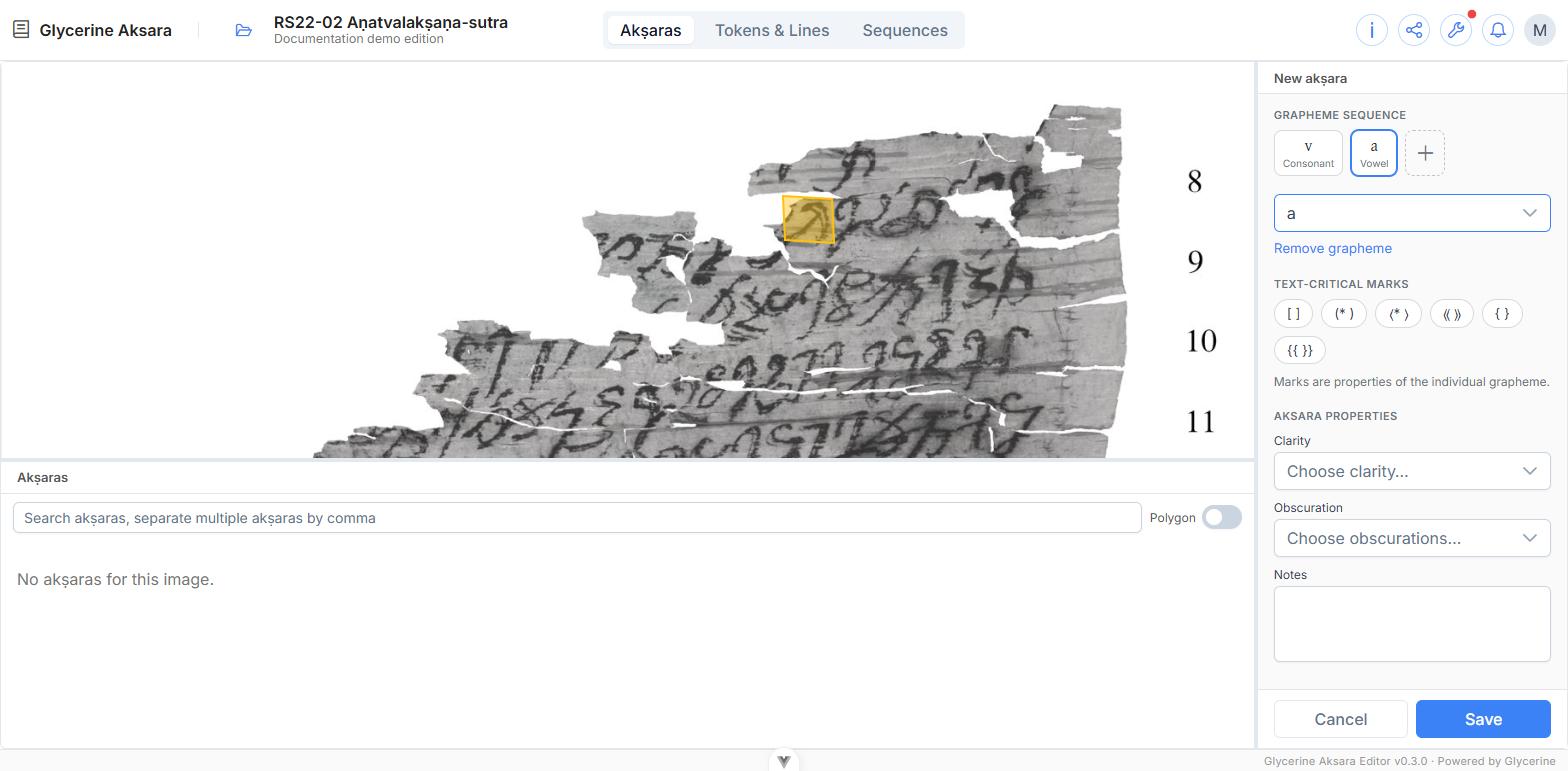
An akṣara is a sequence of graphemes
This is the part that surprises people. The grapheme catalogue does not contain syllables — searching it for sa returns nothing. It contains the individual signs the syllable is built from:
- consonants —
k,k̲,kh,v,v́,vh,ś… - vowels —
a,ā,ă,i,u…
So the akṣara śu is recorded as two graphemes, ś + u, and appears in the pane as two chips:
śConsonantuVowel
Recording the components rather than the syllable is what lets the Viewer's paleography view group signs, and what lets a token start or end in the middle of an akṣara.
Drawing an akṣara
In Akṣaras mode, the round button at the top left of the image arms the polygon tool. Then:
- Click once for each point around the sign.
- Close the shape by clicking the first point again, or double-clicking.
An on-screen prompt repeats this while the tool is armed, along with Cancel drawing.
Trace the ink rather than boxing it. The outline is what the Viewer cuts out for the paleography view and the akṣara inspector, so a tight outline gives a usable sign chart and a loose one does not. If the image has an ink mask, the Editor can do the tracing for you — see Fitting the outline to the ink.
Completing the shape opens the akṣara editor on the right.
Fitting the outline to the ink
When the image has an ink mask, the akṣara editor opens with an Outline section above the grapheme sequence. Images without one do not show the section; draw by hand as above.
Fit to ink replaces the shape you drew with a single outline traced around the ink inside it. So the drawing can be quick: a rough polygon that takes in the whole sign and nothing else is enough.
- Only ink inside your shape counts. Take in the whole sign — detached vowel signs and anusvāra included — but keep the neighbouring signs out.
- Separate parts of the sign are joined into one outline, holes are filled, and small specks are ignored.
- The first fit on an image can take a moment while its mask downloads. Later fits are immediate.
Once fitted, the button is disabled — Already fitted — adjust the threshold in Fit settings. Drag a vertex and it becomes available again, fitting from your edited shape. Revert puts back the shape you had before fitting.
Fit settings, collapsed by default:
| Threshold | How sure the mask must be that a pixel is ink, 0.05–0.95, default 0.50. Lower gives fuller outlines but more stray marks; higher gives tighter outlines but may drop faint strokes. Moving it re-fits from the shape you drew, not from the last result. It returns to 0.50 when the page is reloaded |
| Auto-fit after drawing | Fits as soon as you close a new shape. Remembered in this browser |
No ink detected at this threshold leaves your shape as it was — lower the threshold, or draw a larger shape.
Nothing is stored until Save; a fitted outline is saved exactly like a hand-drawn one.
When Fit to ink is not available
If the mask is still being made, or failed, the Outline section says so in place of the buttons. See Ink Masks.
Filling in the editor
Grapheme sequence — the + adds a slot and opens the picker straight away. The picker searches from the start of the transliteration, so k finds k, k̲, kh, kh̲. Each chip can be clicked to reselect it, and Remove grapheme deletes it. Add the graphemes in the order they are read.
Text-critical marks — apply to the selected grapheme, not the whole akṣara. See Text-Critical Marks.
Akṣara properties — apply to the whole sign:
| Clarity | How legible the sign is, 0–5 |
| Obscuration | What is in the way — Scratch, Fold. More than one may be chosen |
| Notes | Free text |
Then Save.
Editing an existing akṣara
Click its outline on the image, or a cut-out in the akṣara table. The editor opens on it, and the outline grows vertex handles — drag them to correct the shape. Geometry and graphemes are saved together by the pane's Save.
Fit to ink works here too, taking the existing outline as the area to search. An akṣara outlined in several parts comes back as a single outline.
Delete removes the akṣara. Any token using its graphemes loses them.
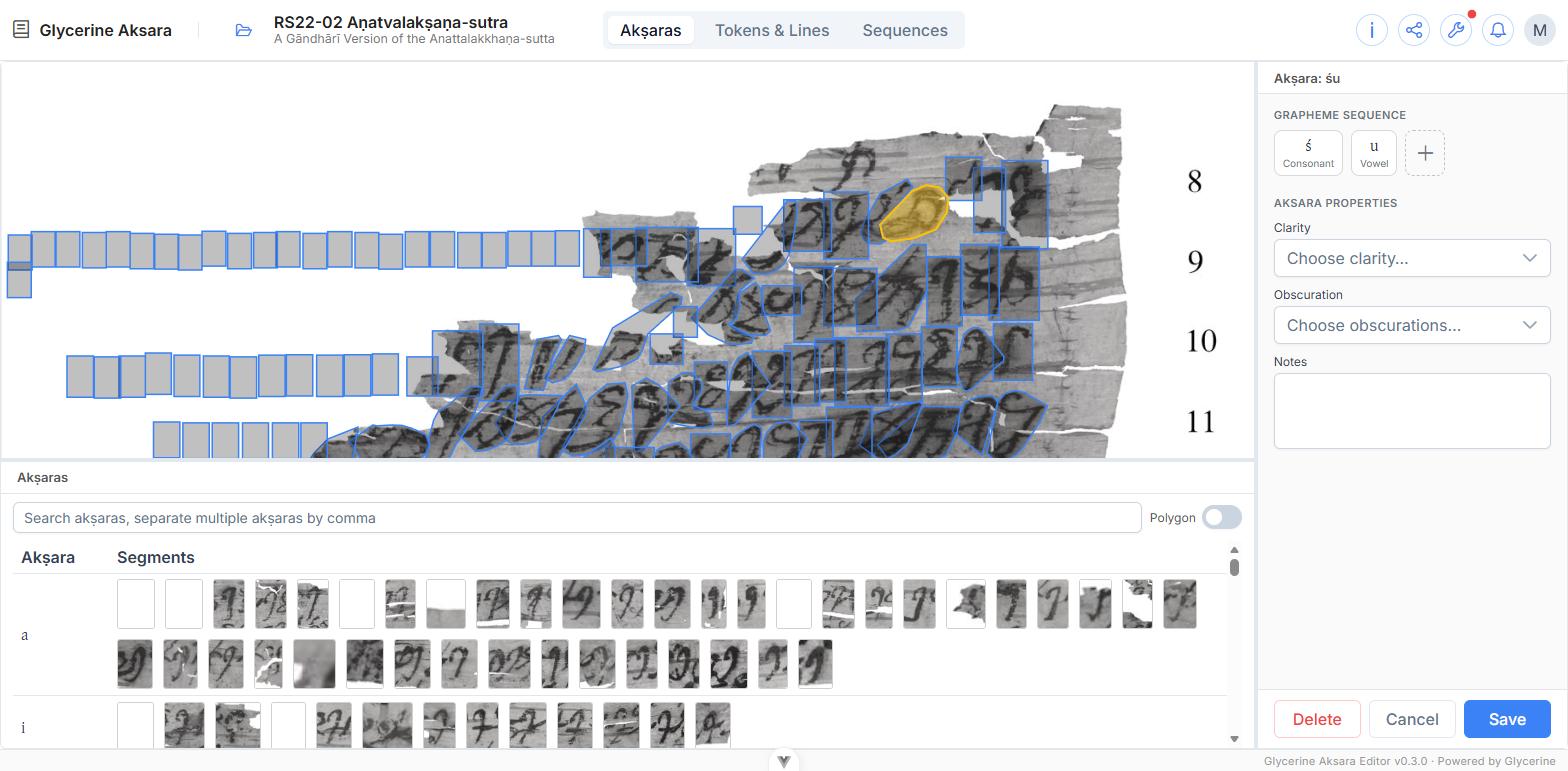
The akṣara table
The bottom pane lists every akṣara on the current image, one row per reading, with each instance as a cut-out — the same sign chart the Viewer offers, built as you work.
- Search filters by whole akṣara, comma-separated:
ta, ṭa, da, ḍa. - Polygon switches the cut-outs between a padded rectangle and the traced outline.
- Clicking a row highlights every instance of that reading on the image; clicking a cut-out selects that one instance and opens it for editing.
Blank cut-outs are akṣaras with no surviving ink — restorations, whose outline is a placeholder rather than a trace.
The count and the table are counting different things
The number in the right-hand pane is the akṣara count for the whole edition; the table lists the current image only. On a single-image text they agree.
The vowel carrier
The Editor writes a vowel carrier — a zero-onset consonant — before any vowel that opens an akṣara or follows another vowel. It is stored, but never shown: it is not in the grapheme picker, and it is stripped again on display.
You will only notice it in its effects. a followed by i renders as aï, and a followed by u as aü, because the carrier between them marks the two vowels as separate rather than a diphthong. There is nothing to do about it — the Editor inserts and hides it for you.