

Opening a Text and Edition
Everything in the Editor happens inside one edition of one text, so the first thing the Editor needs from you is which. The folder icon at the left of the header opens the Manage dialog, where that choice is made.
The Manage dialog
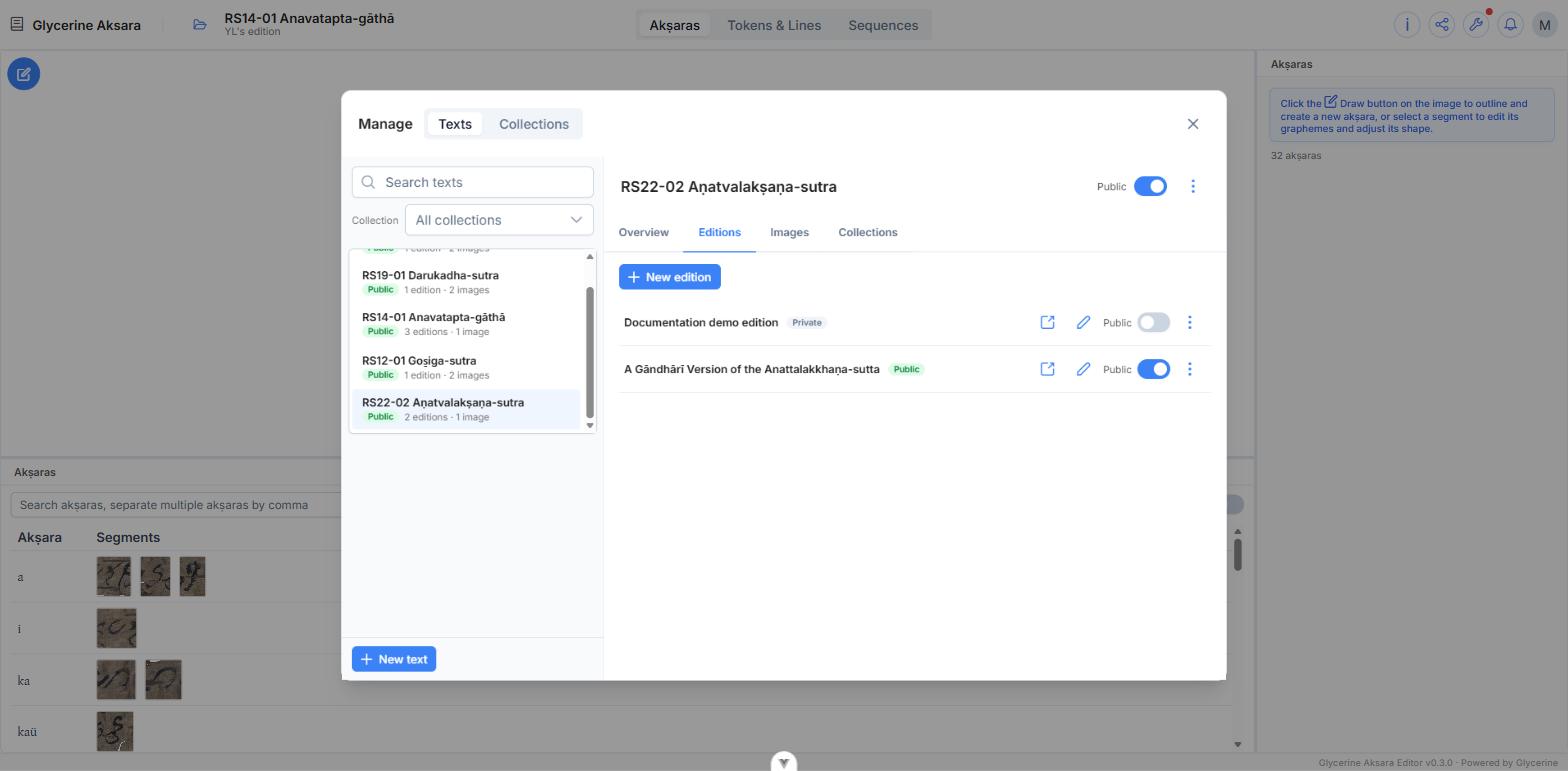
Manage has two scopes, chosen by the switch in its header:
- Texts — the manuscripts you have created, and everything belonging to them.
- Collections — groupings of texts. See Collections.
Under Texts, the list on the left is searchable and can be filtered to a single collection. Each entry shows whether the text is public and how many editions and images it holds. Selecting one opens it on the right, under four tabs: Overview, Editions, Images, and Collections.
To start work, go to the Editions tab and either double-click an edition or use its Open in editor button.
What you see
The list shows only your own texts. Another scholar's public edition is readable in the Viewer, but it does not appear here, and there is no way to open someone else's edition for editing.
Being returned to where you were
The Editor remembers the last text and edition you had open and restores them the next time you sign in. The memory is per-browser, so a different machine starts you somewhere else.
If it cannot restore — the edition was deleted, or this is your first sign-in — Manage opens by itself so you can choose. A brand-new account with no texts yet lands here too; see Texts.
Switching mid-session
Opening a different edition clears every pane: the selection, and any draft you had open. If a draft is unsaved you are asked first, and can go back and save it.
Edition properties without the hunt
Once an edition is open, the i button in the header jumps straight to its form in Manage, rather than making you find it in the list again.